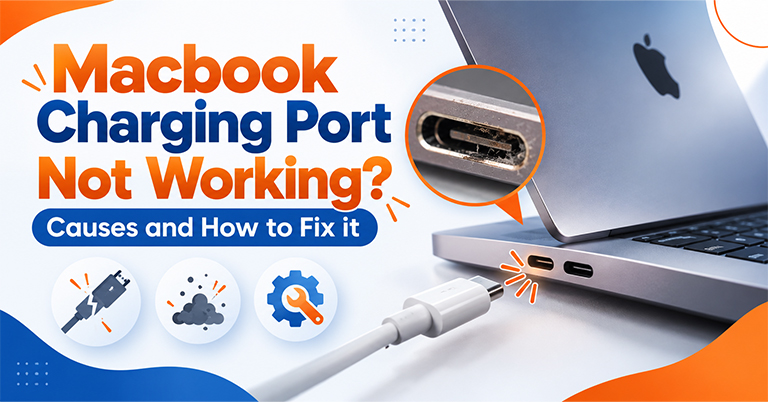
You just plugged in your MacBook to the socket and, to your shock, there’s no charging indicator, no green or amber light, no battery percentage moving. Now, you’re in full-on panic because you cannot get back to your work.
MacBook charging port issues are one of the most commonly misdiagnosed problems in the repair world. A lot of people pay for a port replacement when the problem was actually the cable. Others replace the cable three times when the port was damaged all along.
This guide helps you figure out exactly which situation you’re in, what’s causing it, what you can check yourself, when to visit a local repair shop for a second opinion, and when the problem needs a specialist.
MagSafe vs USB-C: Identify Your MacBook’s Charging Port Type
Before we go in, let’s just take a few moments to identify the type of charging port your MacBook has.
-
MagSafe
This is Apple’s magnetic charging connector. It was used on MacBooks from 2006 all the way to 2019, then discontinued, and then brought back on the MacBook Pro M3 and M4 (14-inch and 16-inch) alongside USB-C.
-
USB-C / Thunderbolt
These ports are used on all current MacBook Air models and the base MacBook Pro. Unlike MagSafe, these ports handle charging, data transfer, and external displays all in one.
MacBook Pro owners with M3/M4: Your MacBook has both MagSafe and USB-C ports. If MagSafe isn’t charging, try USB-C. If neither works, take it in for a diagnosis
Common Causes of MacBook Charging Port Issues
Based on our experience, there are a wide number of reasons when it comes to a MacBook not charging. The most common reasons are:
-
It’s the Cable or Charger, Not the Port
This could very well be the most common cause of a MacBook not charging. Cables fray internally even when they look fine on the outside. The USB-C braided cable that came with your MacBook can develop internal wire breaks near the connector end.
How to check: Borrow a known-working charger and cable from someone else. If your MacBook charges fine with their cable, your cable is the problem, not the port.
-
Debris or Dust Blocking the Port
USB-C ports are small and face downward on most MacBooks, which makes them surprisingly good at collecting lint, dust, and pocket debris over time. Even a small amount of compacted fluff can prevent the cable from seating fully, breaking the charging connection without any visible damage to the port itself.
How to check: Shine a torch directly into the port. If you can see debris, even a thin layer of lint, that’s likely your culprit.
How to clean charging port safely:
-
- Use a can of compressed air to blow short bursts a few centimetres away.
- A dry, soft-bristled toothbrush can gently loosen debris around the opening
- A wooden toothpick (not metal) can carefully dislodge compacted lint
⚠️ Do not use a SIM card pin, needle, or any metal object inside the port. The contact pins inside USB-C and MagSafe ports are delicate. One slip can cause the kind of damage that actually does need a repair.
For MacBook MagSafe not charging issues specifically, check the magnetic connector on the cable end too. The MagSafe connector has small pins that can collect debris and oxidise over time. A dry cloth wipe of the connector itself sometimes resolves intermittent charging on older MagSafe MacBooks.
-
A Software or Settings Issue Masquerading as a Port Problem
Not every MacBook not charging issue is physical. macOS has a battery optimisation feature that intentionally limits charging to 80% to preserve long-term battery health. If your MacBook is sitting at 79-80% and showing as “not charging” – this is likely why.
Check this: Go to Apple Menu → System Settings → Battery and look for Optimised Battery Charging. Toggle it off temporarily and see if charging resumes past 80%.
A corrupted SMC state can also prevent charging even when everything is working fine. Resetting how your MacBook manages power can resolve charging issues caused by it.
To reset SMC on Apple Silicon Macs (M1, M2, M3, M4): Simply shut down, wait 30 seconds, and restart. Apple Silicon Macs reset the SMC automatically on a full shutdown.
To reset SMC on Intel MacBooks with T2 chip:
-
- Shut down completely
- Hold Shift + Control + Option + Power for 10 seconds
- Release all keys, then turn on normally
-
Physical Port Damage
If the cable feels loose in the port, wobbles, or only charges when held at a specific angle, it may be damaged and a MacBook port replacement/repair is likely needed. This can happen from:
-
- Repeated plugging and unplugging over years of use, wearing down the internal contacts
- A cable being pulled out at an angle under stress — common if you’ve ever caught a cable with your foot
- Liquid damage corroding the contacts inside the port
- A drop or impact that shifted the port slightly on the logic board
On MacBook Pro models with multiple Thunderbolt/USB-C ports, always test all available ports before concluding the port hardware is damaged.
MacBook Air charging port not working is slightly more critical because the MacBook Air only has two USB-C ports and if both stop charging, there’s no fallback.
💡 Quick test: If one USB-C port charges your MacBook but another doesn’t, you’ve just confirmed port-specific damage. That’s actually good news. It narrows the repair significantly.
-
MagSafe Board Failure
On MacBook Pro models that use MagSafe, there’s a separate small board called the MagSafe board or DC-in board. It sits between the MagSafe port and the logic board. This board can fail independently of both the port and the logic board.
Symptoms: MagSafe connector attaches magnetically but shows no light at all, or flickers between amber and green repeatedly without charging stabilising. If a known-working MacBook Pro charger is not working on your MagSafe port, the MagSafe board is the likely culprit.
-
Logic Board Level Charging Fault
This is the least common cause and the one most people fear. If the charging circuit on the logic board fails – either due to liquid damage, a power surge, or component failure – no port will charge the MacBook regardless of what cable or charger you use.
Signs this might be the case:
-
- None of the USB-C ports work
- MagSafe also doesn’t charge
- MacBook shows no response at all even with a confirmed working charger.
At this point, a professional logic board diagnosis is essential before any repair decision is made.
What to Try at Home to Fix MacBook Charging Port Not Working
You can try this at home before you visit a MacBook service centre in Nehru Place, Gurgaon, or the wider NCR.
- Test with a different cable and charger — borrow one if needed
- Inspect and clean the port with compressed air
- Check Optimised Battery Charging in System Settings
- Reset SMC (steps above depending on your chip)
- On multi-port MacBooks — test every available port
- Restart your MacBook and try charging again from cold
Note: If your MacBook is running slow alongside the charging issue, it might be worth reading our guide on it, as it could point to a different problem.
When to Visit a Local Repair Shop
If the basic steps above haven’t helped, the next move is getting a hands-on diagnosis.
A good local Mac repair specialist should be able to tell you within a short assessment whether the issue is:
- The physical port (USB-C connector or MagSafe port)
- The MagSafe board
- A logic board-level charging fault
- Something else entirely
This matters because the cost difference between these is significant. A port clean is minimal. A MacBook charging port repair typically runs ₹4,000-₹10,000 depending on the model. A MagSafe board replacement is usually ₹6,000-₹14,000. A logic board replacement for Mac is a whole different expense entirely.
What to ask any repair shop before handing over your MacBook:
- Do you diagnose before quoting?
- What parts do you use – OEM or aftermarket?
- Is there a warranty on the repair?
- What’s your policy if the issue isn’t resolved?
If they can’t answer all four clearly, keep looking.
Lappy Maker: The Trusted Choice for MacBook Charging Port Repairs
If you’re in Delhi NCR and the basic fixes haven’t worked, this is exactly the kind of problem our experienced team at Lappy Maker handles regularly. MacBook charging port issues – whether it’s a MacBook USB-C port not working, a MagSafe not charging, or something deeper like a board-level fault are diagnosed properly before any repair is recommended.
Here’s what you get:
- Over 8 years of technical experience and know-how
- No fix, no fee – if the problem can’t be resolved, you pay nothing
- OEM-quality parts on every repair – no cheap aftermarket components
- Up to 1-year warranty on all repairs, parts and labour included
- Free doorstep pickup and delivery across Gurgaon, Noida, Faridabad, and Delhi NCR
- Affordable pricing without compromising on quality
- Physical service centre at the tech hub Nehru Place and Gurgaon
Nothing is touched without your sign-off. You’ll know exactly what’s wrong and what it’ll cost before any work begins.
Got a charging port issue you can’t figure out? Contact us at 9319848444 or Whatsapp us and we’ll help you diagnose it.
Get Your MacBook Charging Port Checked Today
A MacBook charging port not working doesn’t automatically mean an expensive repair. In a lot of cases, it’s a cable, a setting, or a bit of lint in the port. If the basic checks don’t resolve it, you can always get a proper diagnosis from a Mac specialist such as Lappy Maker.
A professional diagnosis can help identify whether the issue is with the charging port, cable, battery, or another internal component. This also helps ensure the right repair is carried out instead of replacing parts unnecessarily.
Frequently Asked Questions
Why is my MacBook charging port not working?
The most common causes for a charging port not working are a faulty cable or charger, debris blocking the port, or physical port damage from wear or impact.
Why is my MacBook Pro not charging even when plugged in?
On MacBook Pro models, this can be caused by a faulty cable, a debris-blocked port, a failed MagSafe board, or a logic board charging fault. If you have both MagSafe and USB-C ports (M3/M4 Pro), test both. If neither works with a known-good charger, get it diagnosed by a Mac specialist.
Can debris in a MacBook charging port cause charging issues?
Yes, even a small amount of compacted lint can prevent the cable from seating fully, breaking the charging connection. Use compressed air and a soft toothbrush to clean the port carefully. Never use metal objects inside the port.
Why is my MacBook MagSafe not charging?
Check the MagSafe connector itself for debris or oxidation and wipe it with a dry cloth. If there’s no light on the MagSafe connector with a known-working cable, the issue may be the MagSafe board.
How much does MacBook charging port repair cost in India?
At Lappy Maker, MacBook charging port repair in Delhi NCR typically ranges from ₹1,499 to ₹1,999 depending on the model and whether it’s a USB-C port or MagSafe board replacement. You’ll know the exact cost after a proper diagnosis.
My Mac USB-C charger is not working — is it the charger or the port?
Borrow a known-working USB-C charger and cable and try charging with that. If it works, your original charger or cable is the problem. If it doesn’t, the issue is with the port or something deeper.
Is a MacBook charging port covered under warranty in India?
Physical port damage from normal wear or accidental damage is generally not covered under Apple’s standard warranty. If your MacBook is under AppleCare+, accidental damage coverage applies but comes with a service fee. Out of warranty, an independent repair specialist is typically significantly more affordable than an Apple Authorised Service Centre.
MacBook Air charging port not working — what should I do?
MacBook Air models only have two USB-C ports, so if one isn’t charging, test the other immediately. Clean both ports with compressed air. If neither port charges the MacBook with a confirmed working cable, get it diagnosed — the issue could be the port, a controller, or a charging circuit fault.