“How to fix slow MacBook?” is a question everyone asks when the Mac is slow and work is becoming frustrating. It still functions, yet every click takes a beat too long. Apps take forever to open, and the spinning wheel shows up more than the cursor. For a machine that costs lakhs, it feels completely unacceptable.
A slow Mac is rarely a dying Mac, though. In most cases, it’s completely fixable. You don’t even need to book a service appointment or reinstall everything from scratch to get it running properly again.
In this guide, we will walk you through why your Mac is running slow, what’s causing it, the fixes you can do, and how to speed up your Mac.
Top Reasons Your MacBook Is Running Slow
Before jumping into fixes, it helps to know what you’re dealing with. A slow MacBook usually comes down to one or more of these:
- Storage is nearly full – macOS needs free space to function; when the drive gets above 85-90% capacity, performance drops noticeably
- Too many apps running in the background – each one quietly using RAM and CPU
- Login items launching automatically on startup – adds load before you’ve even opened anything
- Cache files building up over months of use
- An outdated version of macOS with unpatched performance bugs
- A single app misbehaving and hogging resources
- On older Intel MacBooks – thermal throttling from dust buildup or degraded thermal paste
- Other common Mac problems hindering performance
💡 Apple Silicon vs Intel: Apple Silicon (M1–M4) manages memory far better than older Intel models. Slowness on newer Macs usually stems from full storage or background processes rather than a RAM shortage.
Follow These Steps to Speed Up MacBooks
Follow these step-by-step troubleshooting solutions to identify resource hogs, free up memory, and restore your Mac’s speed.
Step 1 — Check What’s Actually Using Your Resources
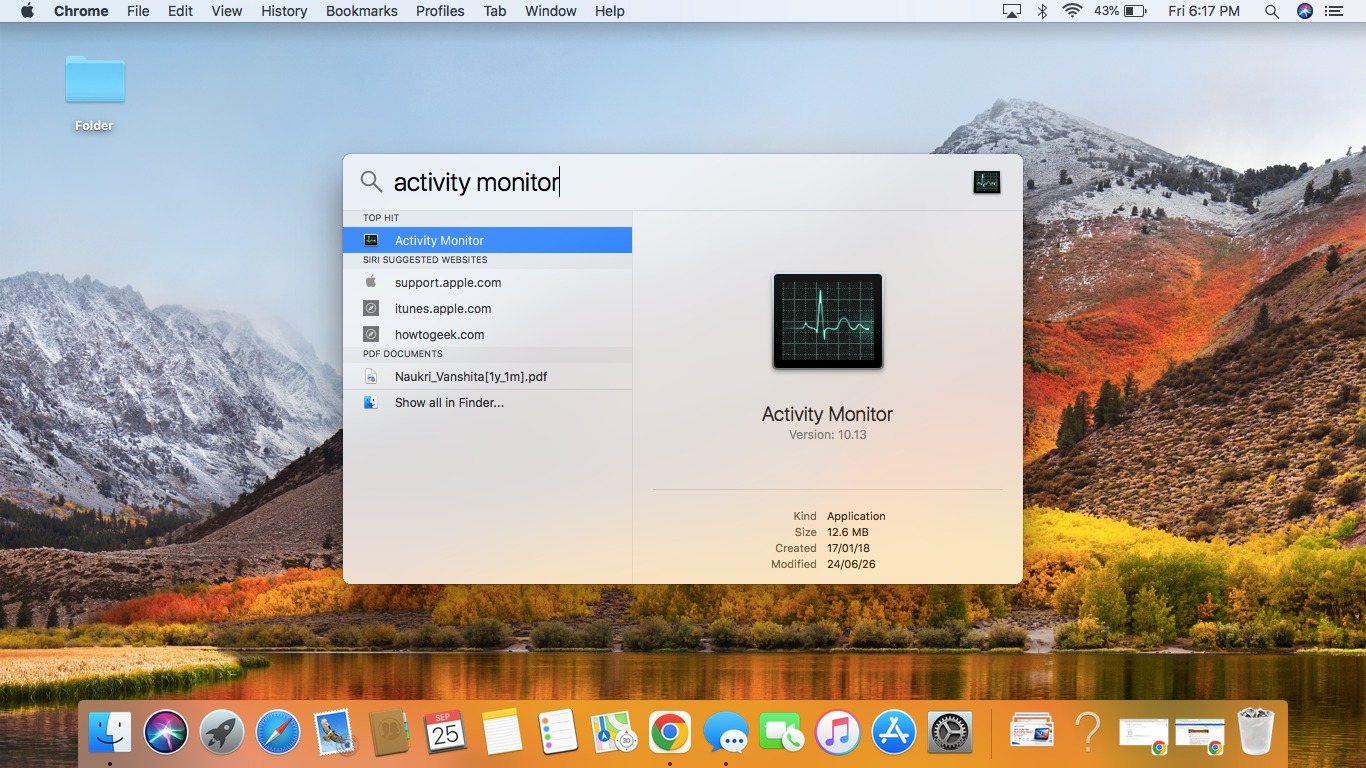
Before changing any settings, find out what’s causing the slowness. macOS has a built-in tool for this.
Open Activity Monitor – search for it in Spotlight (Cmd + Space, then type “Activity Monitor”).
- Click the CPU tab – sort by % CPU (click the column header). Any app sitting consistently above 80-100% CPU when you’re not actively using it is a problem
- Click the Memory tab – check the Memory Pressure graph at the bottom. Green means you’re fine. Yellow means you’re running tight. Red means your Mac is actively struggling for memory
- Click the Energy tab – useful on laptops; shows which apps are hammering your battery and likely your CPU simultaneously
If you find an app that’s consuming far more than it should, select it and click the X button at the top left to quit it. Then check if the slowness improves before doing anything else.
💡 Common offenders: Google Chrome (especially with many tabs open), Zoom running in the background, Teams, Dropbox syncing, and Creative Cloud updater are frequent CPU hogs. Check these first.
Step 2 — Free Up Storage Space
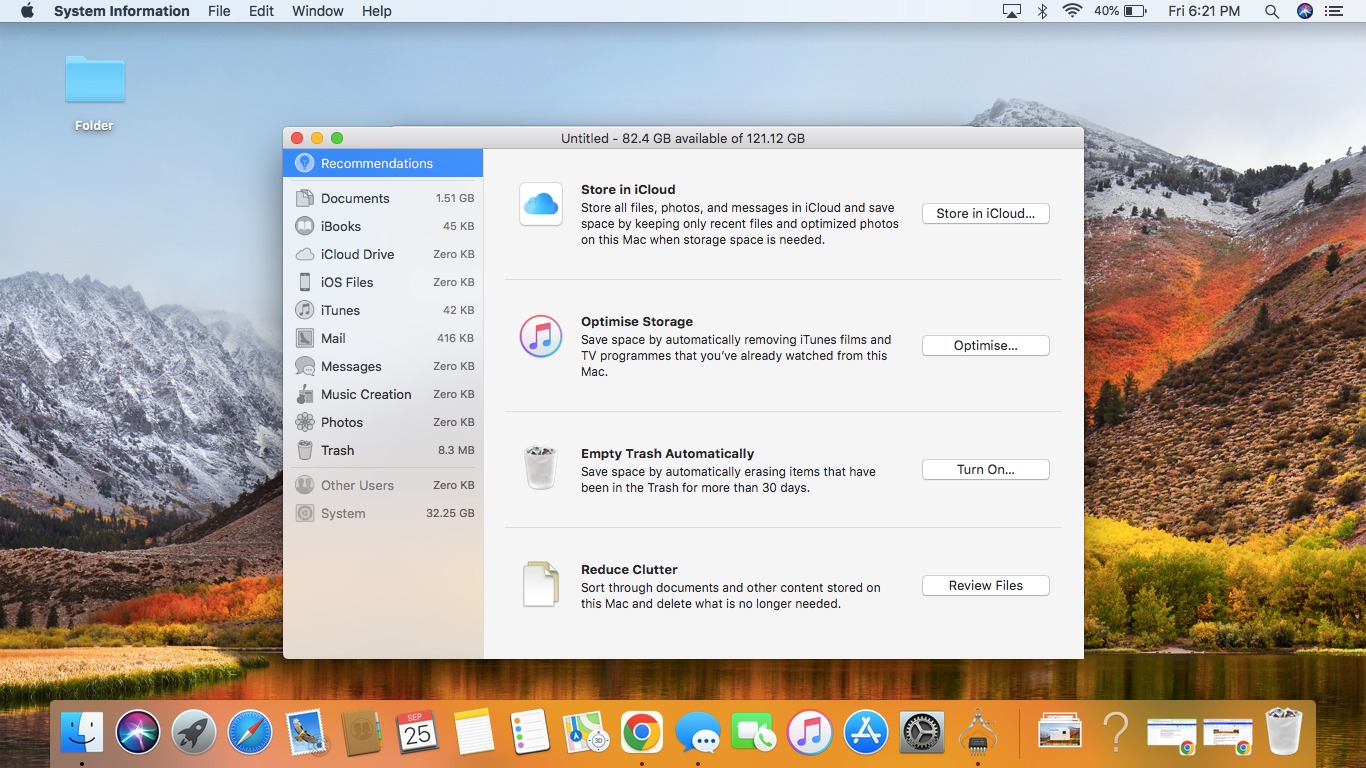
When people ask “why is my MacBook so slow?” this is one of the easiest fixes we recommend first:
Go to Apple Menu → System Settings → General → Storage. You’ll see a breakdown of what’s taking up space.
macOS needs roughly 10-15% of your drive free to operate comfortably. If you’re below that, performance will suffer.
What to clear:
- Large files you don’t need – the Downloads folder is usually full of things you forgot about
- Duplicate photos and videos – Photos app has a Duplicates album (macOS Ventura and later) that finds them automatically
- Old iOS backups – go to System Settings → General → Storage → iPhone Backups to see these
- Applications you haven’t opened in months – be honest with yourself here
Built-in tools worth using:
- Optimise Storage – automatically removes Apple TV films and shows you’ve already watched
- Empty Trash Automatically – permanently deletes items that have been in Trash for 30 days
💡 Quick win: Check your Downloads folder right now. Most people have gigabytes of installers, ZIP files, and PDFs they downloaded once and never touched again. Clearing this alone often makes an immediate difference.
Step 3 — Cut Down Your Login Items
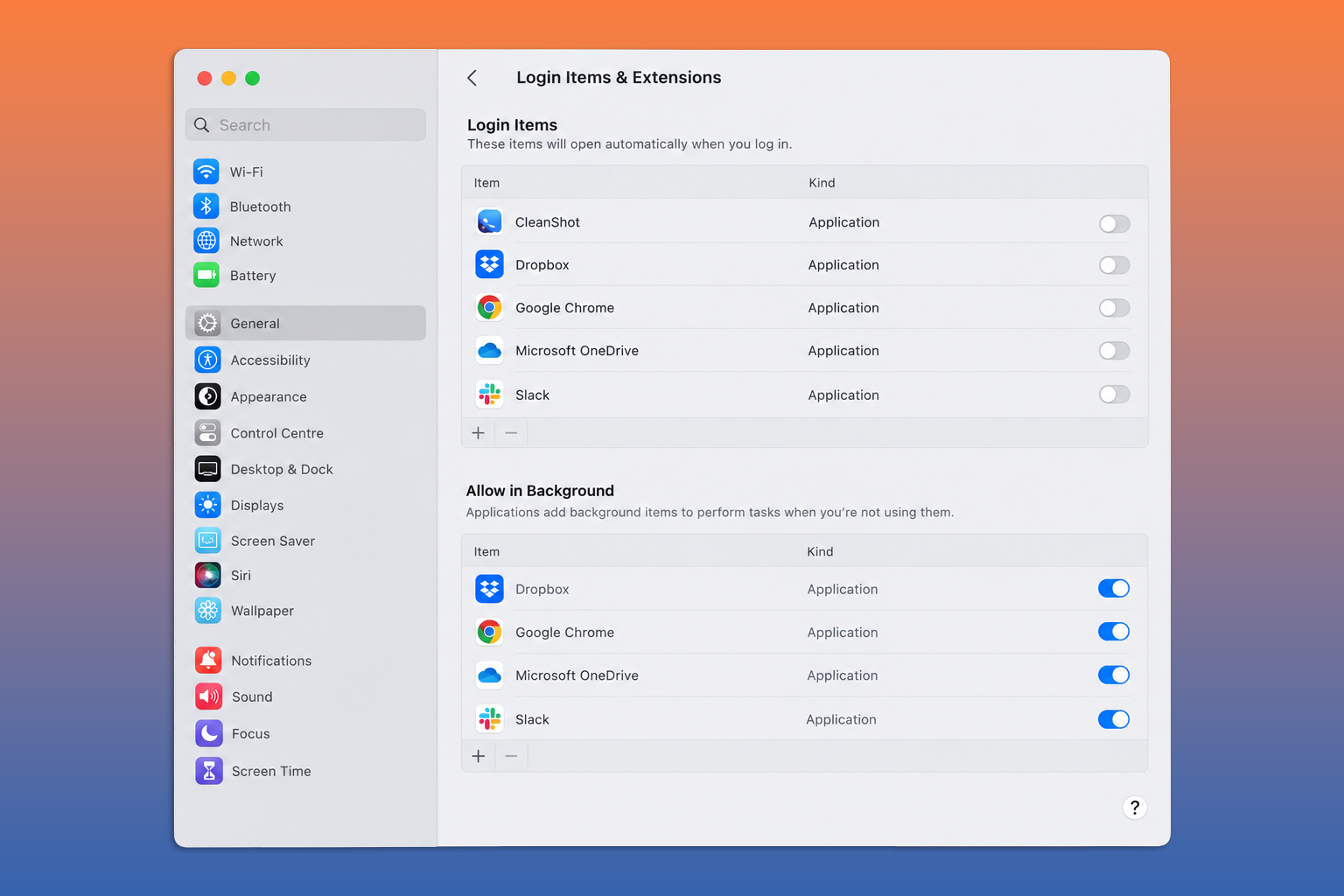
Every app that launches automatically when you start your Mac adds load before you’ve even started working. Over time, this list grows without you noticing.
Go to Apple Menu → System Settings → General → Login Items & Extensions
You’ll see two lists:
- Open at Login – apps that launch automatically at startup
- Allow in Background – apps that run silently without appearing in your dock
Go through both and remove anything you don’t actively need the moment your Mac starts.
💡 Common ones to disable: Spotify, Microsoft Teams, Slack, Adobe Creative Cloud, WhatsApp, Steam.
Step 4 — Update macOS
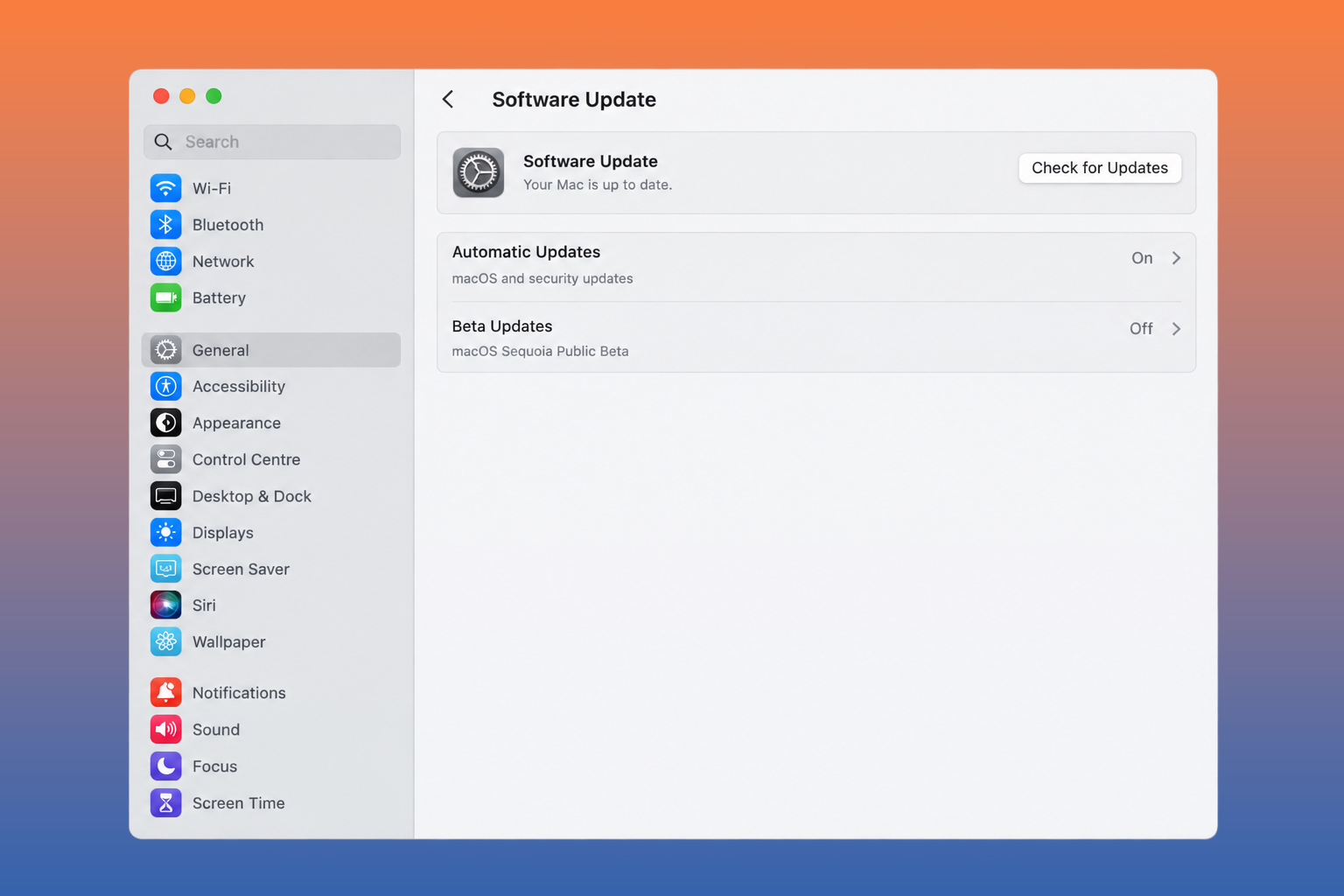
An outdated macOS version is a surprisingly common cause of performance issues. Apple regularly releases updates that fix memory leaks, background process bugs, and efficiency improvements, especially on Apple Silicon.
Go to Apple Menu → System Settings → General → Software Update
If there’s an update available, install it.
Step 5 — Clear Your Browser Cache
If the slowness is mainly noticeable while browsing, your browser cache is likely the culprit. Browsers accumulate gigabytes of cached data over time, and a bloated cache actually slows page loading rather than speeding it up.
Safari:
- Go to Safari → Settings → Advanced
- Enable Show features for web developers
- Go to Develop in the menu bar → Empty Caches
Chrome:
- Press Cmd + Shift + Delete
- Select Cached images and files and Cookies
- Set time range to All time → Clear data
While you’re here – check how many browser extensions you have installed. Each one adds overhead to every page you load. Disable any you don’t actively use.
Step 6 — Manage Your Desktop
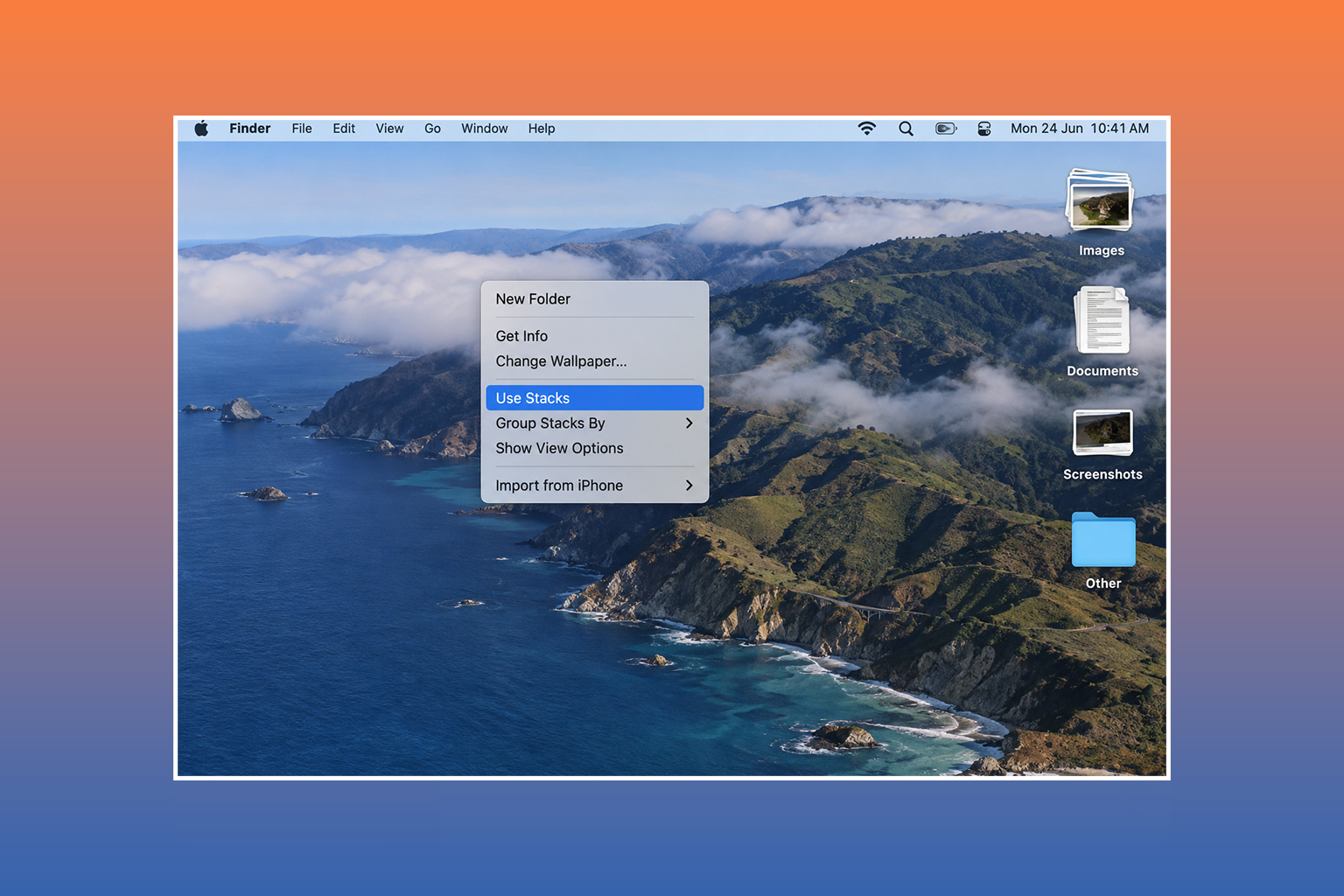
A cluttered desktop covered in files, screenshots, and folders slows macOS down because every icon on the desktop is rendered as a live window by the system.
The quickest fix is to right-click anywhere on the desktop → Use Stacks. This groups everything into tidy stacks automatically and organises it.
For a proper clean-up, move files off the desktop entirely into organised folders in Finder. Your desktop should ideally have nothing on it, or very little.
Step 7 — Reset NVRAM (Intel Macs Only)
NVRAM stores system settings like display resolution, startup disk selection, and some performance-related parameters. If these get corrupted, it can cause sluggish behaviour.
- Shut down your MacBook completely
- Turn it on and immediately hold Option + Cmd + P + R
- Keep holding for about 20 seconds – you’ll hear the startup chime twice on older models
- Release and let it boot normally
💡 Apple Silicon note: M-series Macs reset NVRAM automatically every time they start up. This step only applies to Intel MacBooks (pre-2020).
Step 8 — Check for Malware
Macs are not immune to malware, and a malicious background process consuming CPU and network resources is one of the less obvious causes of a MacBook running slow. If you’ve recently installed software from an unofficial source or clicked a suspicious download link, this is worth checking.
Apple’s built-in XProtect handles basic malware automatically, but for a more thorough check, Malwarebytes for Mac offers a free scan and is well-regarded in the Mac security community.
When DIY MacBook Running Slow Fixes Don’t Work
If you’ve gone through all of the above and you’re still left asking “Why is my Mac so slow?”, it could very well be a hardware issue.
- Failing or near-full SSD: As SSDs age and fill up, read/write speeds can degrade. An SSD upgrade will easily fix this.
- Thermal throttling: On older Intel MacBooks especially, dust accumulation inside the vents causes the processor to throttle itself to avoid overheating. A professional internal clean and thermal paste reapplication can restore significant performance.
- Degraded battery affecting performance: On some MacBook models, a significantly degraded battery causes the system to reduce processor speed to manage power draw. A quick battery replacement service will fix it.
These are things where you need a hands-on professional diagnosis and cannot be easily fixed with a settings change.
Get Professional Mac Diagnostics and Repair Services with Lappy Maker

If your Mac is running slow even after trying everything above, it’s worth getting it properly looked at. At Lappy Maker, our experienced technicians work specifically on MacBooks and laptops, and a sluggish Mac that software fixes can’t resolve is something we diagnose regularly.
- 40,000+ repairs completed across MacBooks and laptops of all models and generations
- No fix, no fee – if we can’t resolve it, you pay nothing
- OEM-quality parts used on every repair, no cheap aftermarket components
- 1-year warranty on all repairs, parts and labour included
- Free doorstep pickup and delivery across Gurgaon, Noida, Faridabad, and Delhi NCR.
Not sure if your Mac needs a repair or just a tune-up? Contact us, and we’ll help you figure it out.
Ready to Fix a Mac Running Slow?
A slow Mac is annoying, but learning how to fix slow Mac issues is easier than you think. Start with Activity Monitor to see what’s actually happening, clear your storage, trim your login items, and update macOS. Those four steps alone fix the majority of slowness issues people experience.
If the problem goes deeper than software, get it diagnosed at Lappy Maker before assuming you need a new machine. A clean, a fresh thermal paste application, or an SSD health check costs a fraction of a new MacBook and often brings an older machine back to feeling fast again. You can reach us at 9319848444 or WhatsApp us, Monday to Saturday, 10 AM to 8 PM.
Frequently Asked Questions
Why is my Mac running slow all of a sudden?
Sudden slowness is usually caused by one of three things: a background app consuming too much CPU or memory (check Activity Monitor), a macOS update that introduced a bug, or your storage filling up beyond the comfortable threshold.
How do I fix a slow Mac without losing my data?
All the fixes in this guide are non-destructive – clearing cache, managing login items, freeing up storage, and updating macOS won’t touch your personal files.
Why is my MacBook so slow after a macOS update?
Some macOS updates introduce performance bugs that affect certain models. Check Apple’s support forums or MacRumors to see if others with your model are reporting the same. Apple usually patches these quickly.
How do I fix a slow MacBook Pro?
Check Activity Monitor first, then storage, login items, macOS update, and browser cache. It can also be caused by thermal throttling on MacBook Pro models. So, if your device gets hot and slows down under load, that’s likely the cause.
Can a full hard drive make a Mac slow?
Yes, significantly so. macOS uses free storage space as virtual memory. When your drive fills beyond 85-90% capacity, the system has nowhere to put temporary data and performance drops noticeably.
Why is my Mac slow even after restarting?
If restarting doesn’t help, the issue is persistent rather than a temporary software glitch. Check your login items, storage levels, and run Activity Monitor to see if a specific background process is the cause.
How much free storage should a Mac have to run properly?
Ideally, keep at least 10–15% of your total storage free at all times. On a 256GB Mac, that means keeping roughly 25–38GB free. Below that, you’ll start to notice performance degradation.
Is a slow Mac worth repairing or should I buy a new one?
If your Mac is M1 or newer, it’s almost certainly worth fixing, as these chips are still genuinely fast and capable machines. Check out our guide on whether a MacBook is worth buying in 2026 if you’re genuinely weighing the two options.